Every ticket on one screen, in the order it came in
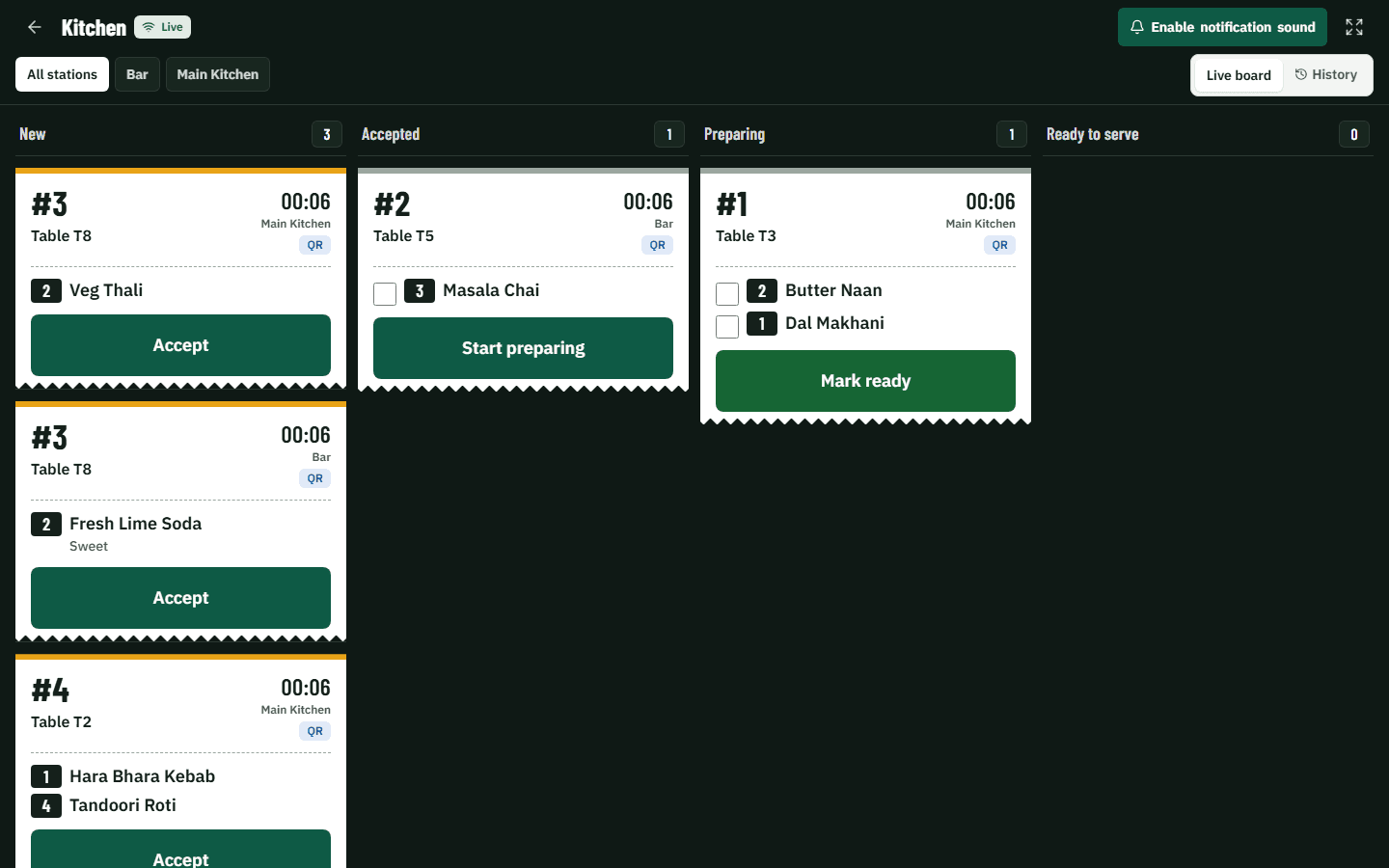
New orders land on the kitchen screen with a chime and go to the right station. Cooks tap Accept, Preparing and Ready; waiters know the moment food is up.
Free trial, no card needed.
How it works during service
1. Arrive
A QR, POS or waiter order lands on the screen with a chime, split by station.
2. Accept
The cook accepts it. If you use recipes, the ingredients come off stock at this moment.
3. Cook
Each ticket shows how long it has waited and turns red when it runs late.
4. Ready
Tap Ready and the waiter's phone tells them which table to serve.
What's included
Station routing
Starters to the tandoor, drinks to the bar. Each station sees only its own tickets, or all of them.
Timers and overdue alerts
Every ticket shows how long it has waited. Late tickets turn red so nothing is forgotten in a rush.
Item-by-item
Tick off dishes as they are ready. Add-ons to an existing order arrive as a separate ticket.
Printers too
Prefer paper? Kitchen and receipt printers on your network print through a small bridge app.
What it changes for your restaurant
- No lost or unreadable paper tickets
- The pass knows exactly what is waiting and for how long
- Kitchen speed shows up in the reports, by station and by hour
Common questions
What screen do I need?
Any tablet, laptop or TV with a browser. No special hardware.
What if the Wi-Fi drops?
The screen reconnects by itself and catches up on any tickets it missed, without double alerts.
Works together with
- QR table orderingGuests order from the table
- Waiter appTable calls and ready alerts
- Inventory and food costStock, recipes and purchasing
Run your next service on VercentDine
14-day free trial, no card needed. Start with the sample menu and place a test order right away.